Put one AI step inside a fixed workflow: it reads an e-mail, picks a label from a closed list, and hands the doubtful ones to a person. Then build, test with ten e-mails, improve and publish your own inbox triage in n8n with Gemini.
Module 06 ~50 min read + lab No codePrerequisites: Module 5: Automation Basics with n8n. Your n8n Cloud trial from Session 5 (check the days left at the top of your screen), with the same Google account connected to Gmail and Google Sheets. No API key and no credit card: the AI step runs on the trial's built-in Gateway credits.
| Session | What happened, or happens |
|---|---|
| 5 | Triggers, actions and items; the leave request as a workflow; your request intake, tested and published |
| 6 (this module) | One AI step inside the workflow, with a fixed output and a person for the doubtful cases |
| 7 | Connecting tools (MCP), so an AI step can look things up |
| 8 | Building an agent |
Almost every useful AI step in an office workflow is one of four jobs. Name the job before you write the prompt: it keeps the prompt short and the output predictable.
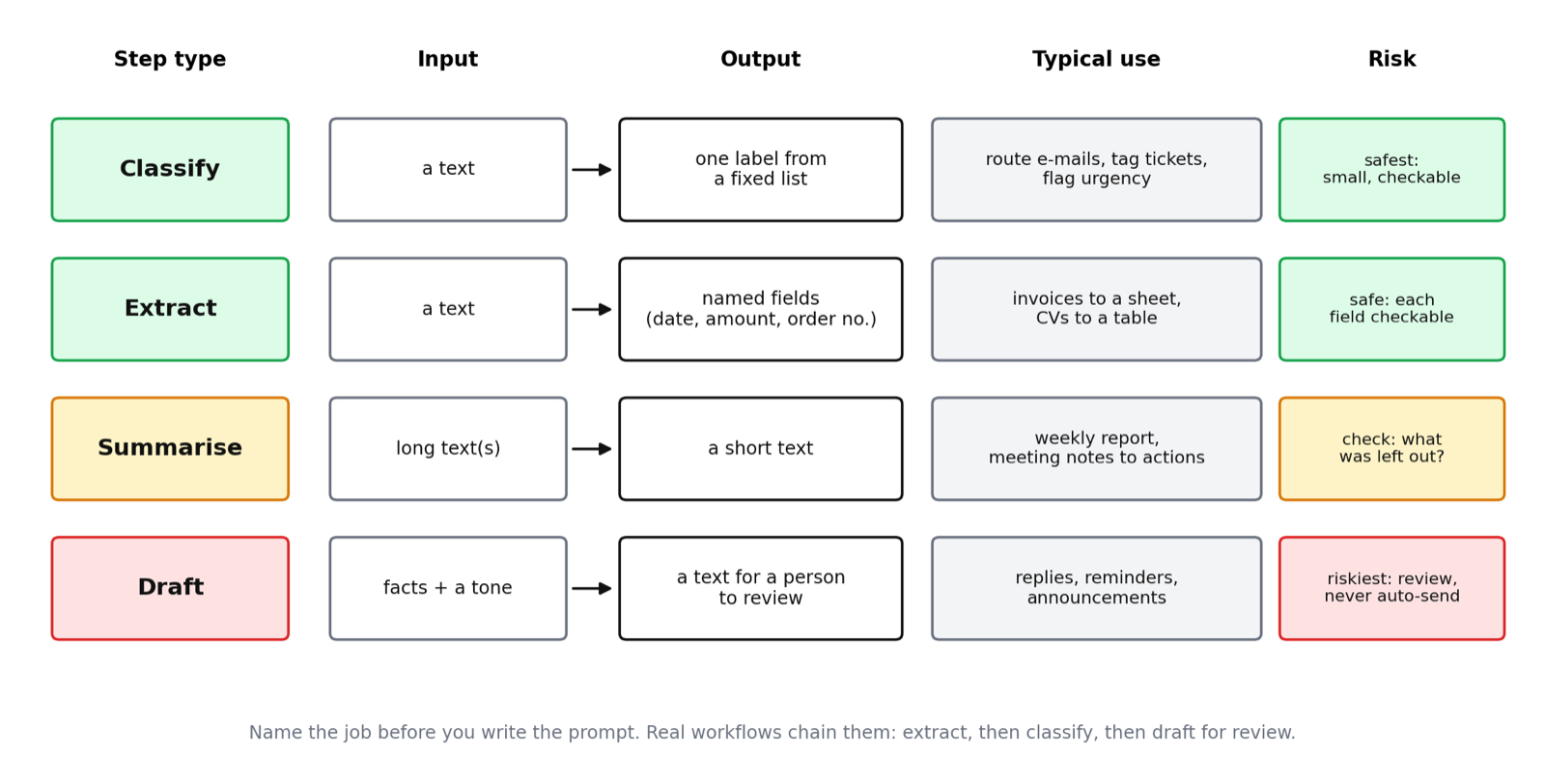
Draft is the riskiest because its output goes to a reader, so a draft step should end in a human review rather than an automatic send. Module 10 turns that rule into a formal control.
Extract the supplier, number, date and amount. Classify it as within or above the approval limit. Draft the reply for a person to check. Summarise the day's invoices for finance.
Each one has a narrow, checkable output and can be tested on its own. A failure is easy to find in Executions. Today we build the first: classify.
The leave request from Modules 3 to 5 had one amber step we skipped: reading the free-text note. That is a classify step too (urgent or not, medical or not). Today's pattern applies directly.
Take your future-state map from Module 4. An AI step replaces exactly one box, usually one you marked amber or AI-judged. Around it the workflow stays as it was: a trigger before it, a router or a data node after it.
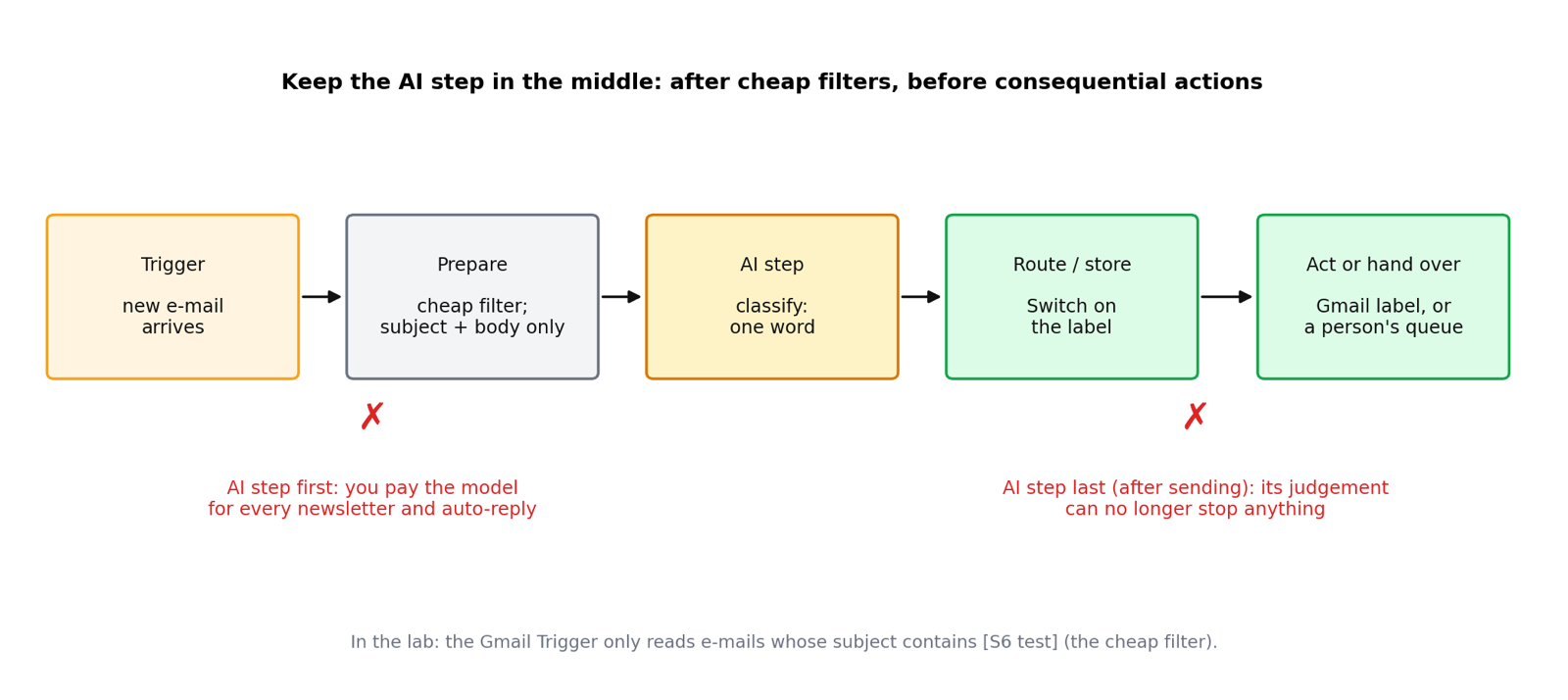
subject:"[S6 test]". (Figure: AI Administrator course material.)Two placement mistakes are common. Putting the AI step first, before any filtering, means paying for the model on every message, newsletters and auto-replies included. Putting it last, after an action such as sending, means its judgement can no longer stop anything.
A step prompt is different from a chat prompt. Nobody reads the answer; the next node does. So the prompt pins down the exact shape of the output and the allowed values. This is the module's prompt, version 1:
Five parts: a one-line role; a closed list of answers; a definition of each label; "single word only"; and the input at the end. The double curly braces are how n8n inserts fields from the previous node. You drag them from the left-hand input panel; you do not type them.
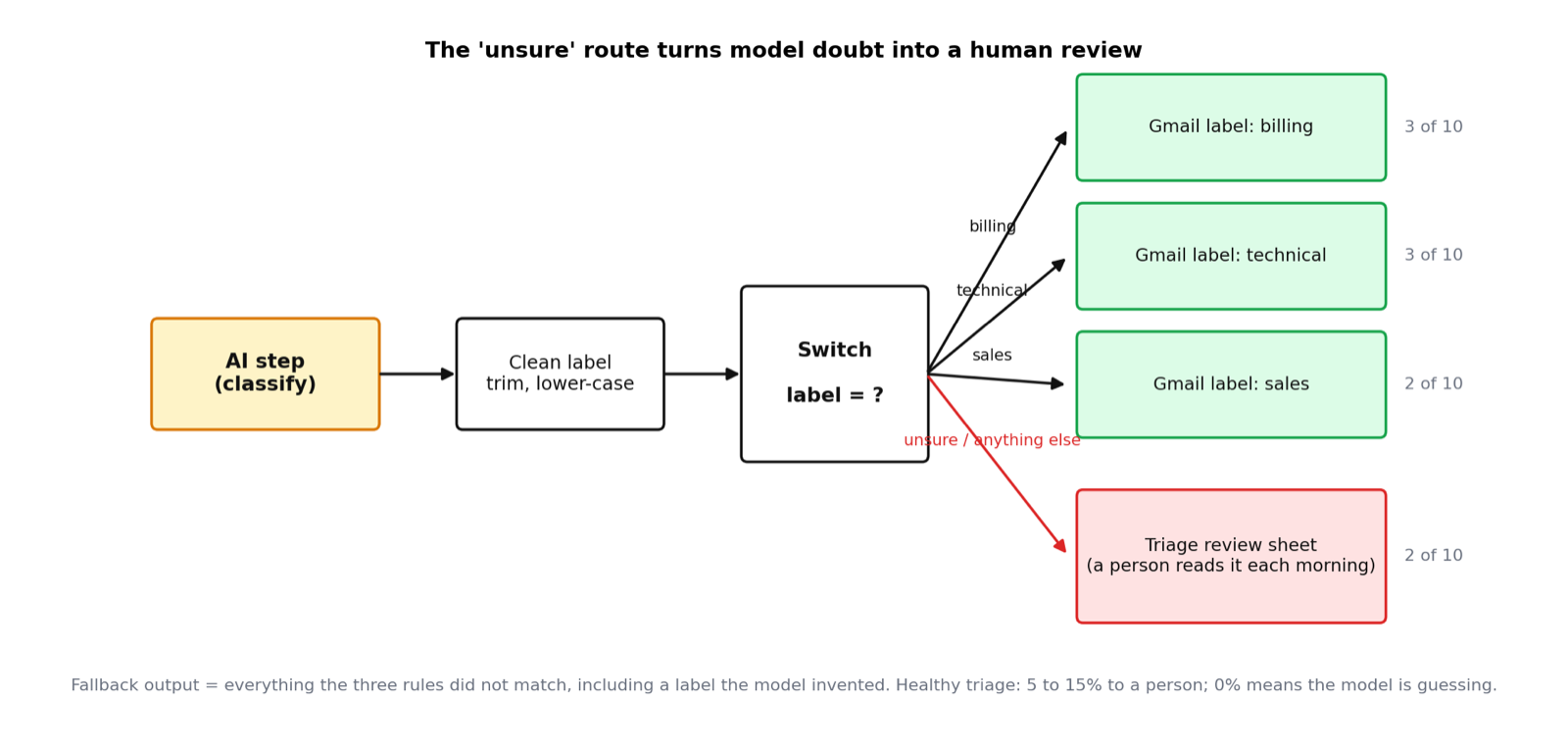
Ask for billing, technical or sales and the model will sometimes answer "support" or "Billing.". A Switch compares text literally: no rule matches and the item silently vanishes. Three defences, all in today's lab: a catch-all label (unsure), a clean-up step (trim and lower-case), and a fallback branch on the Switch that catches even the labels nobody thought of.
order: ..., date: ..., amount: ...noneWe do not build an extract step today; this is where it lives when you need one. For a single-word label, Require Specific Output Format stays off.
A model is never certain; it is fluent, which is different. Your design has to make room for doubt. The simplest tool is a fourth label, unsure, that routes to a person.
| Method | How | Cost | Use when |
|---|---|---|---|
| Let the model say so | Define unsure in the prompt | None extra | Always; it is today's lab |
| Ask for a confidence | Second line: a number 0 to 100; route below 70 | A few tokens | You want a threshold you can tune |
| Ask twice | Two prompts or two models; route when they disagree | Double | High-stakes sorting |
The confidence number is a self-estimate, not a measurement, but it separates the obvious from the borderline surprisingly well.
It is where the interesting cases live, and it is the sample you review weekly to improve the prompt (Module 12). A healthy triage sends 5 to 15 percent of items to a person. Zero means the model is guessing.
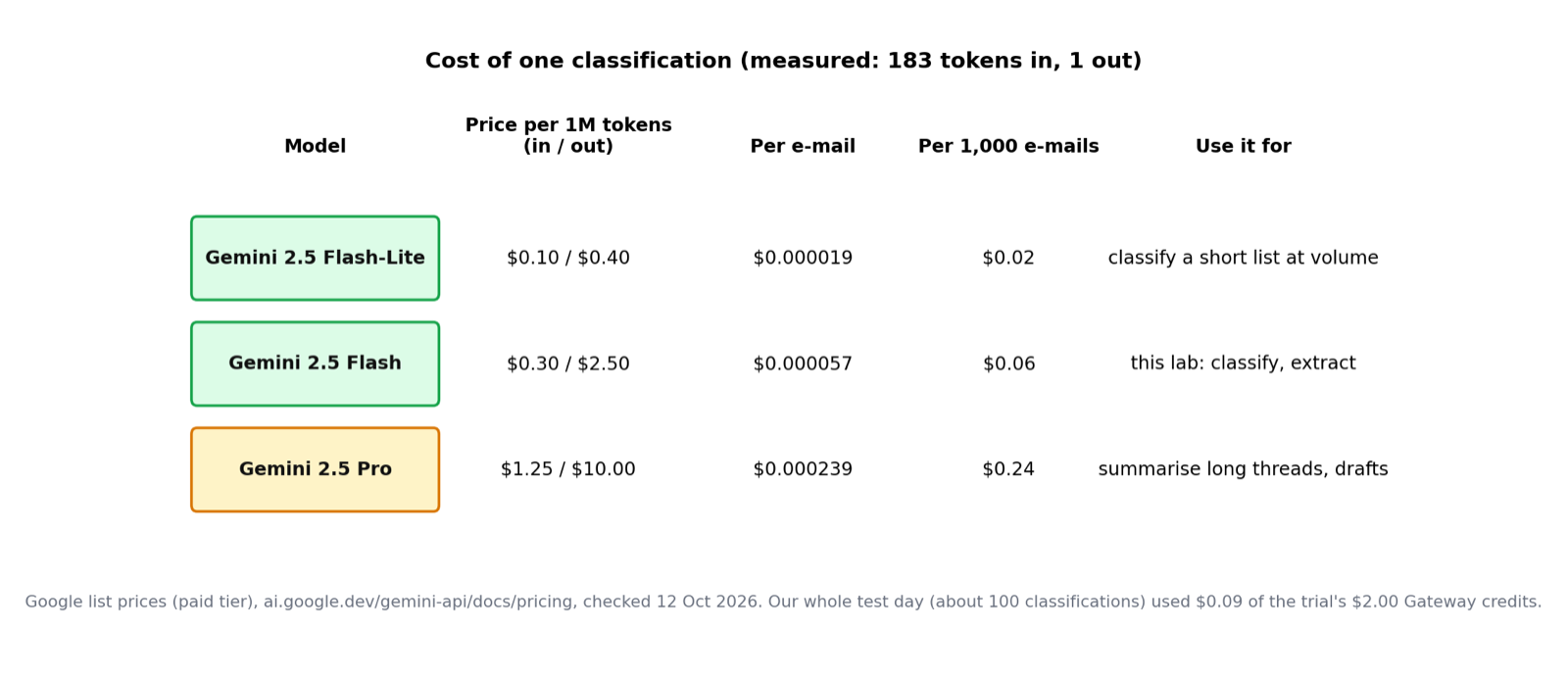
Every AI step costs tokens: roughly words in plus words out (Module 1). We measured one classification in our test: 183 tokens in, 1 token out.
| Step | Model size | Why |
|---|---|---|
| Classify with a short label list | Small (for example Gemini 2.5 Flash) | Easy task, high volume, speed matters |
| Extract a few fields from a clean form | Small | Same |
| Summarise a long, messy thread | Large | Needs to follow references across pages |
| Draft a reply a customer will read | Large | Tone and accuracy are visible |
Trim the input: subject and body, not the whole thread with signatures. Watch the spend from day one: the Gateway credits balance in the Gemini node, or a monthly budget alert with your provider if you use your own key. Module 12 adds proper cost tracking per workflow.
In n8n the AI step is a Basic LLM Chain node with a chat model attached underneath it. In this course everyone uses the Google Gemini Chat Model on the trial's Gateway credits: each n8n Cloud trial starts with $2.00 of credits for the AI nodes, so nobody needs an API key or a card.
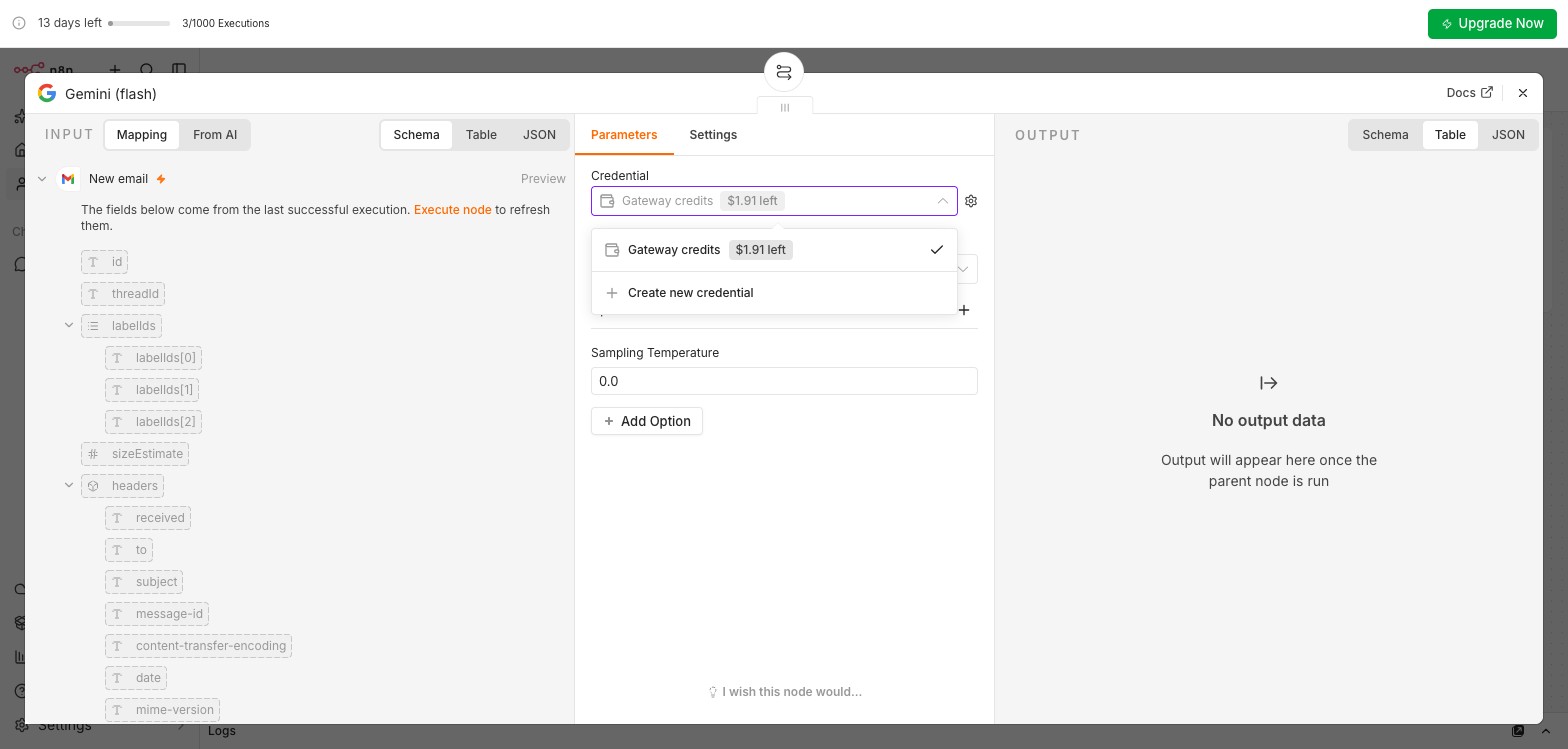
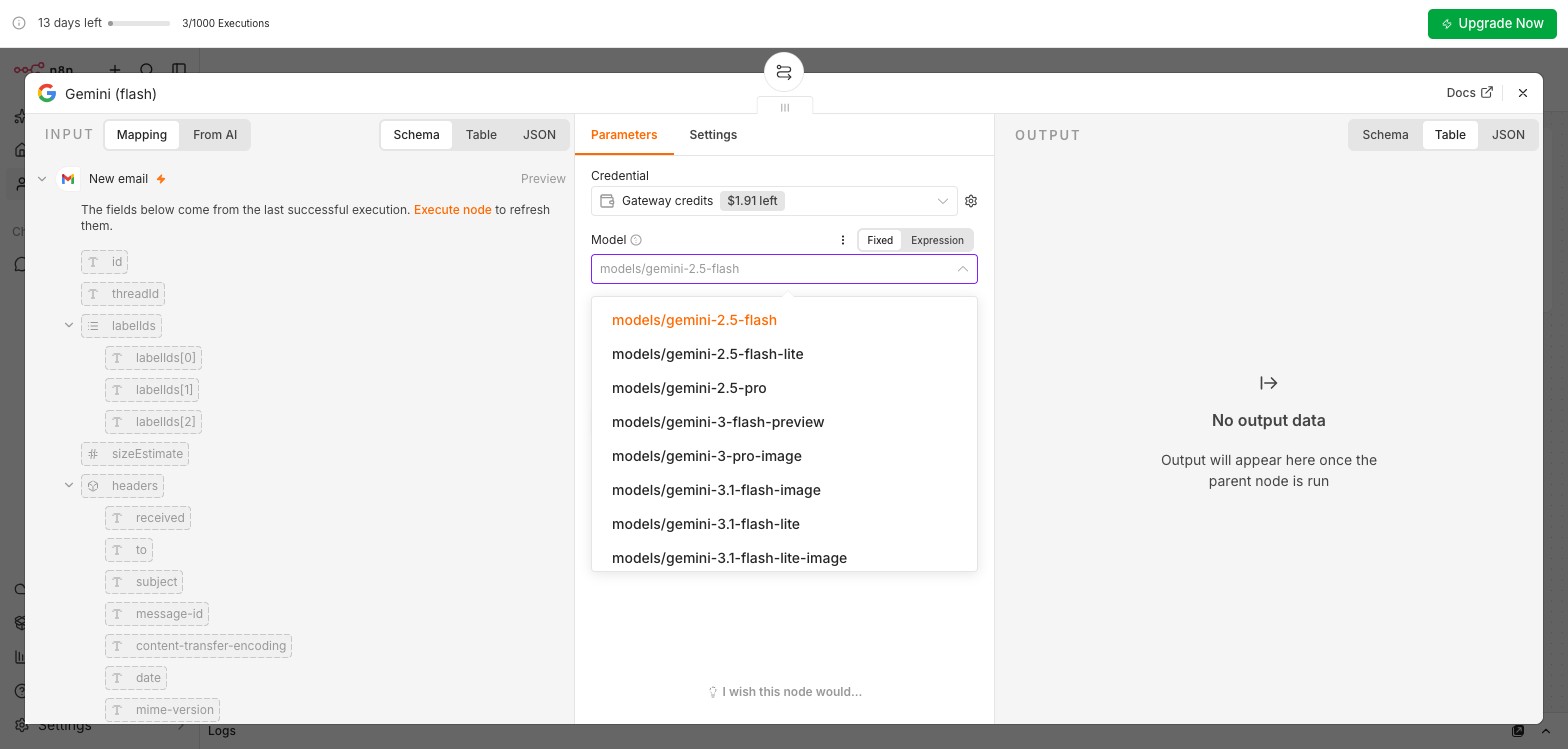
models/gemini-2.5-flash from the list: a small, fast model is right for a short label list. Under Options, set the Sampling Temperature to 0 for repeatable answers. Do not type a model name: the Gateway only serves the models in this list (Trap 2 in the lab).Only if the Gemini node shows no Gateway credits option, or the balance is $0.00. A free key needs a Google account and no credit card. 1. Go to aistudio.google.com, sign in, Get API key, Create API key, then Copy. 2. In n8n, open Google Gemini Chat Model, Credential: Create new credential, paste the key into API Key, leave Host as it is, Save. 3. Pick models/gemini-2.5-flash (it has a free tier) from the list and execute once to check. Never paste a key in the Zoom chat, a sticky note or an e-mail; if anyone saw it, delete it in AI Studio and create a new one. The exported workflow JSON does not contain the key. If you later add billing, set a monthly budget alert in AI Studio (Spend) on day one. Step by step with screenshots: Day3_S6_Gemini_Key_Guide.pdf.
Ten e-mails, one AI step, one person for the doubtful ones. In the live session you watch on Zoom; you build it yourself after the break.
![The Gmail Trigger node: poll every minute, Simplify off, search subject [S6 test], and an output with subject and text fields](images/m6-02_trigger_output.jpg)
subject:"[S6 test]" (the cheap filter). Simplify off, so the output has subject and text. The yellow box under Simplify is n8n's own warning that the full response is larger; we need it, because only the full response has the plain-text body.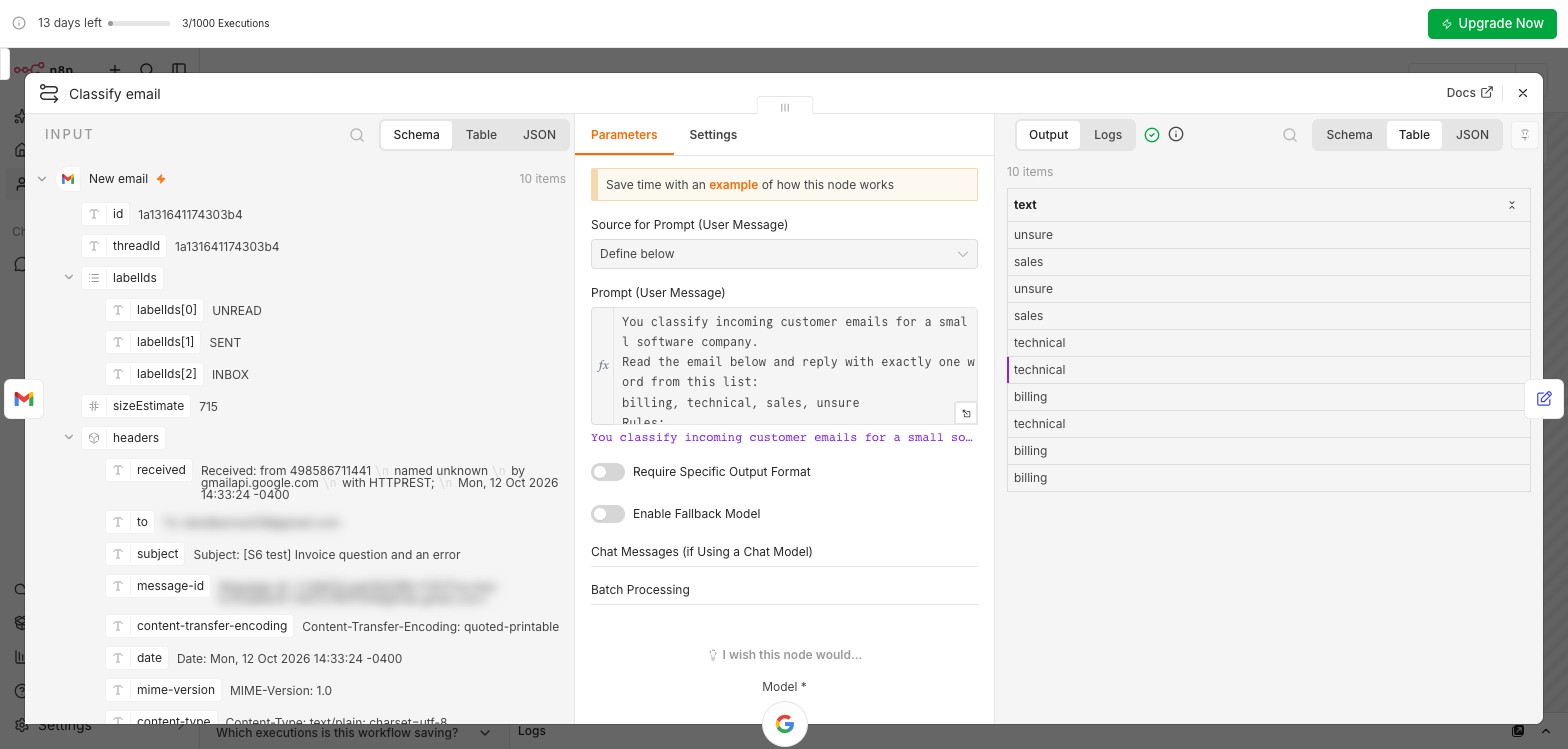
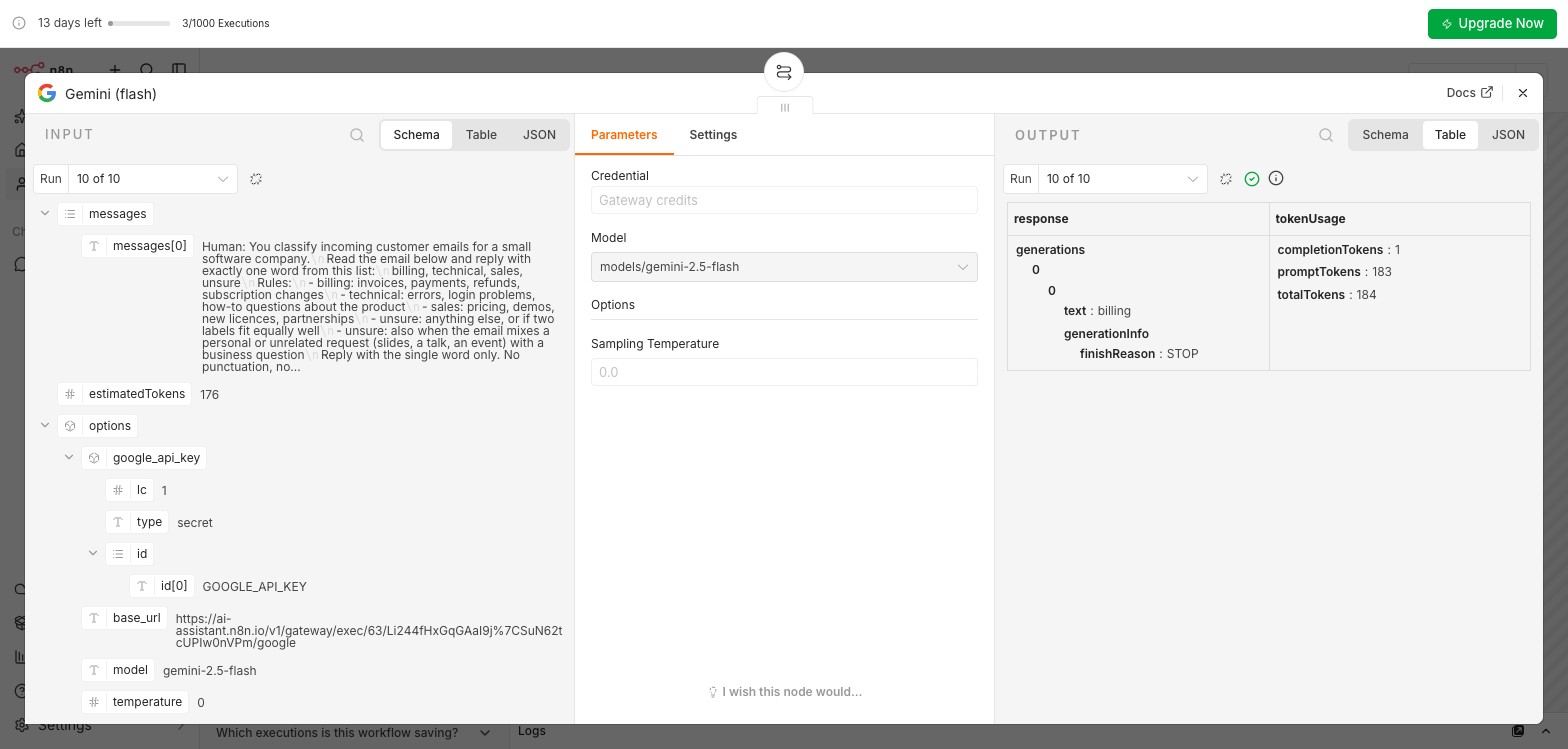
billing out. tokenUsage: 183 prompt tokens, 1 completion token. This is where the cost-per-run number comes from.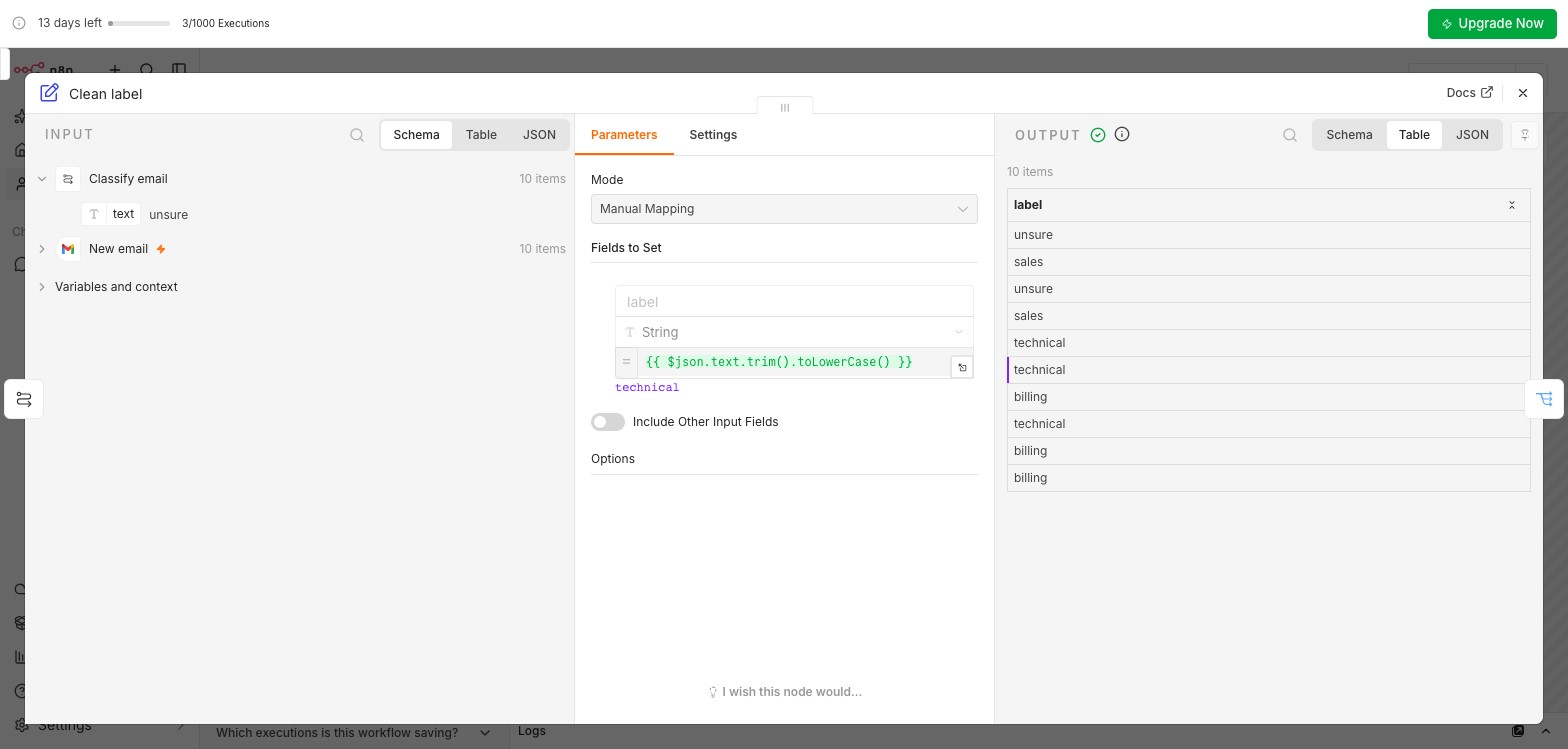
label = {{ $json.text.trim().toLowerCase() }} protects the Switch from spaces and capitals. Include Other Input Fields is off, so the Label nodes reach back to the trigger for the message ID with $('New email').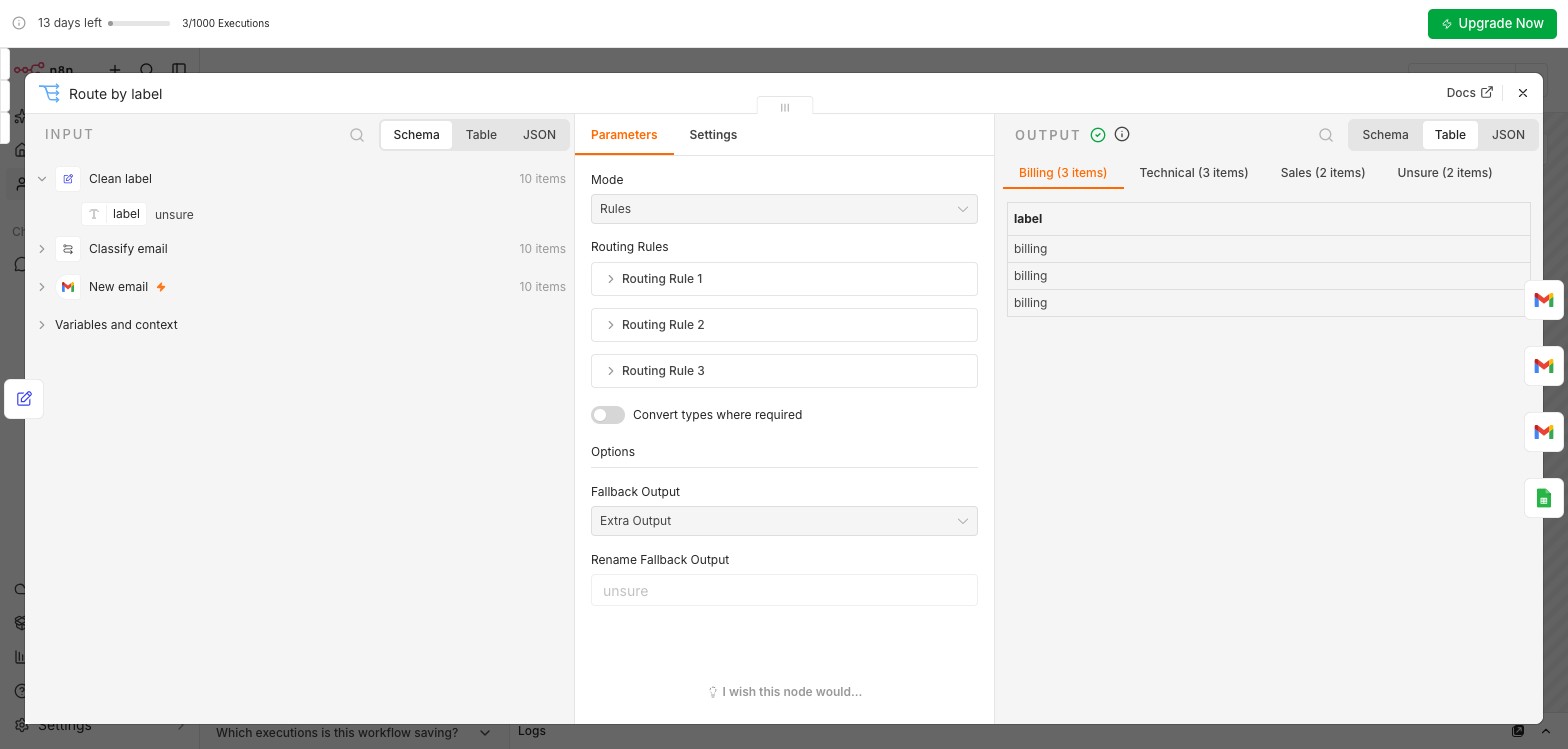
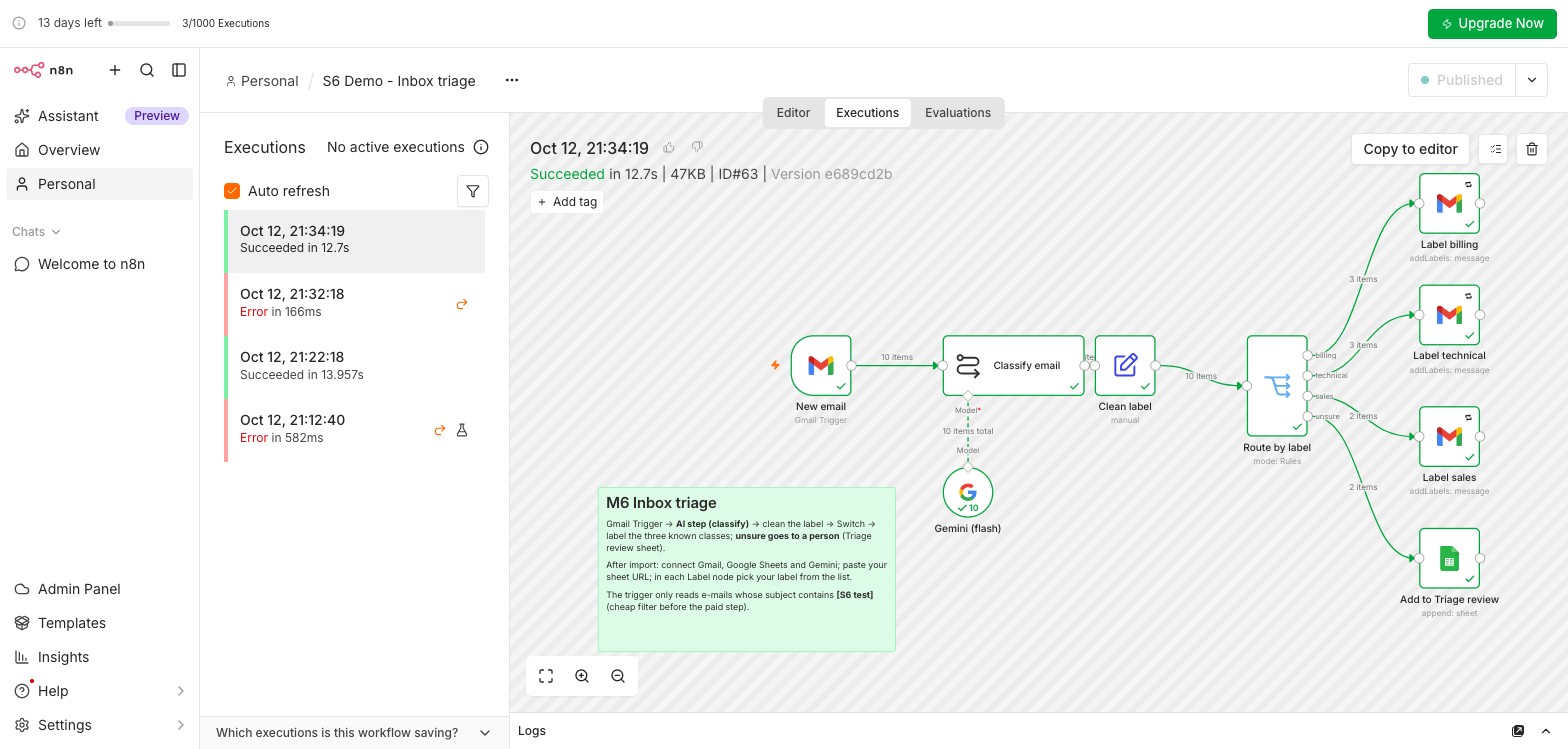
unsure. Output tabs: 3, 3, 2, 2. The fallback is what makes an invented label harmless: it lands with a person instead of vanishing.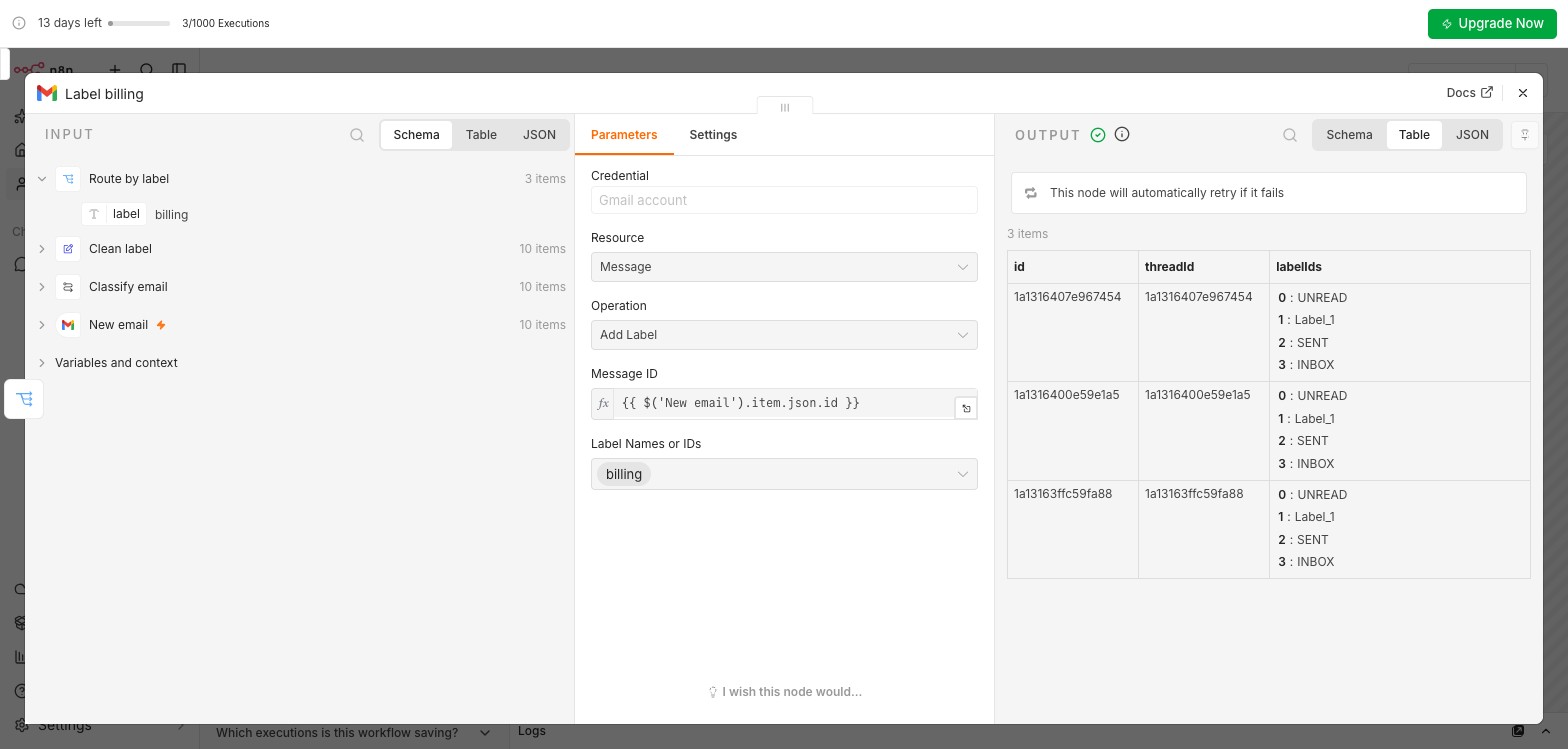
We ran the same ten e-mails four times each with the same prompt at temperature 0. Nine e-mails got the expected label every time. One did not.
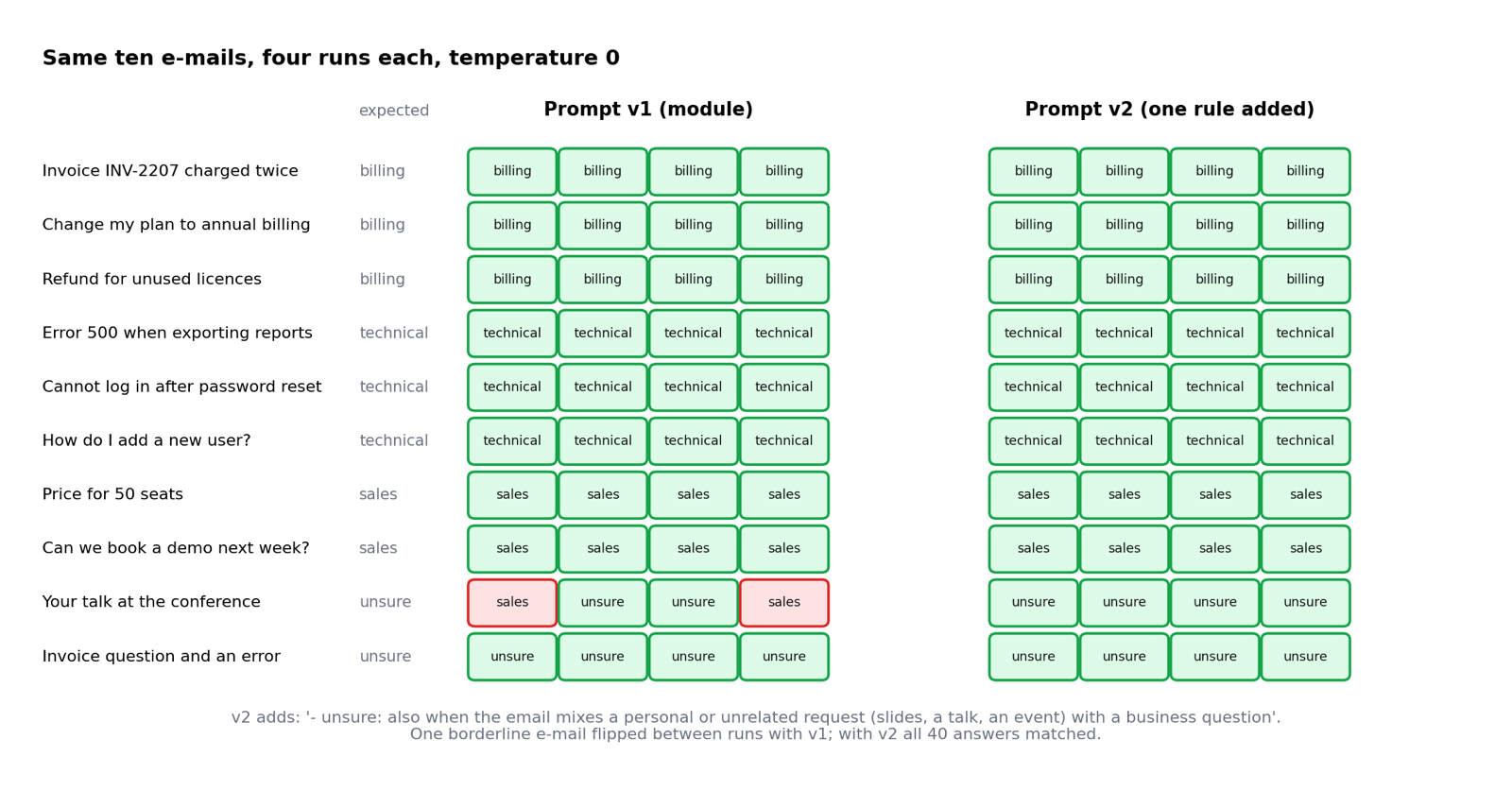
sales in 2 of 4 runs. One added rule: unsure in 4 of 4. (Figure: AI Administrator course material, from runs on 12 October 2026.)The rule we added under the unsure line (prompt version 2):
Test more than once: same prompt, same e-mail, temperature 0, and borderline cases can still flip. Tighten the definition, do not add a hack for one e-mail: a rule that names one subject line fixes one case and breaks the next. This is lab step 7.
Build it yourself: in the live session, 40 minutes in breakout rooms of three or four, everyone in their own workspace. A new e-mail arrives, an AI step classifies it as billing, technical, sales or unsure, a Switch routes it, the three known classes get a Gmail label, and the unsure ones are written to a sheet that a person reads. Then test with ten e-mails, improve the prompt and note the cost per run.
Words in today's n8n: Execute step runs one node, Execute workflow runs the whole workflow once, Publish makes it live (older tutorials say Activate).
Left sidebar, Labels, +: billing, technical, sales. Exactly these names, lower case.
A new Google Sheet, tab renamed Triage review, row 1: date, from, subject, snippet, link. A native Google Sheet, in the same Google account as n8n.
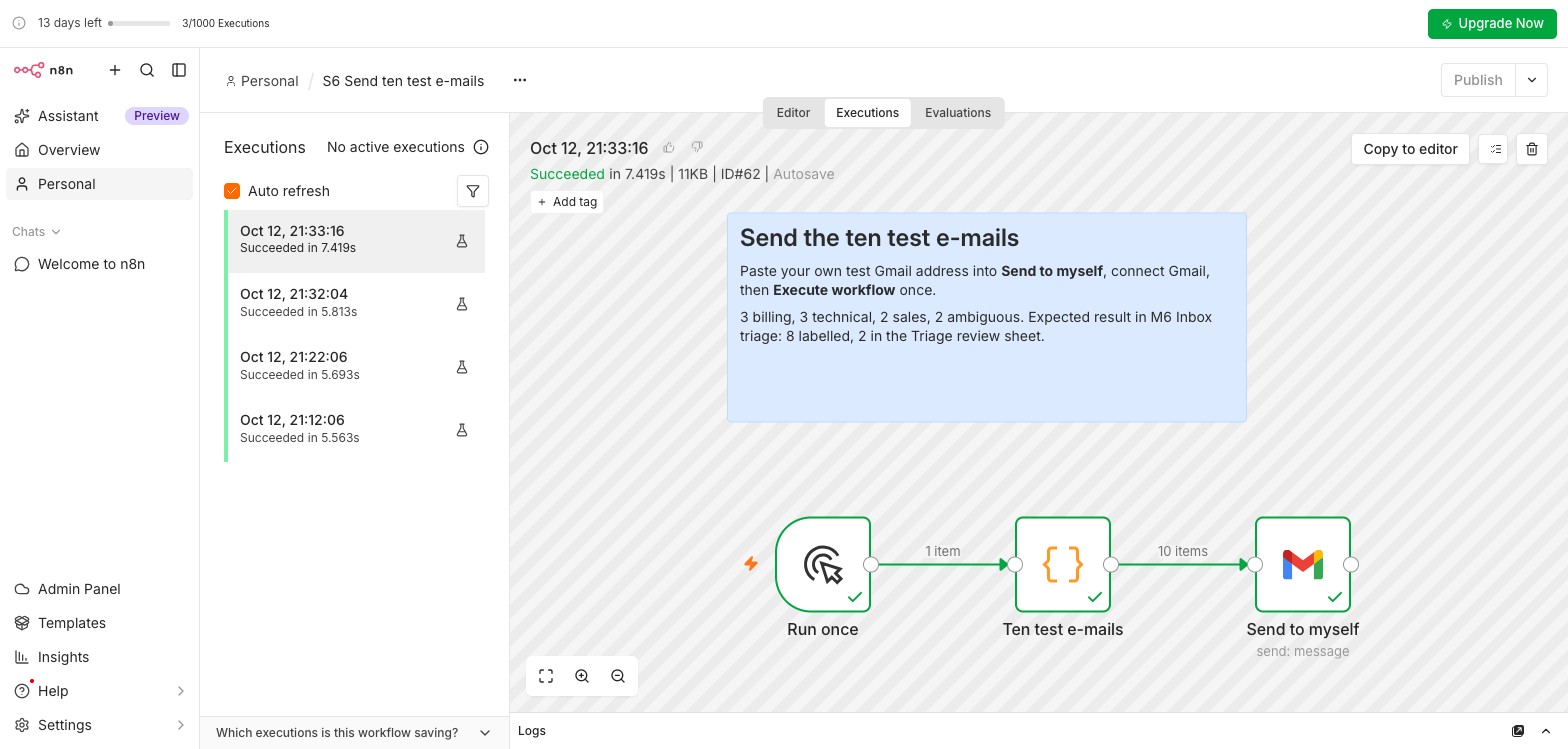
Overview, Create, Import from file: Day3_S6_Send_Test_Emails.json. In Send to myself, connect Gmail and put your own Gmail address in To. Do not run it yet (Trap 3).
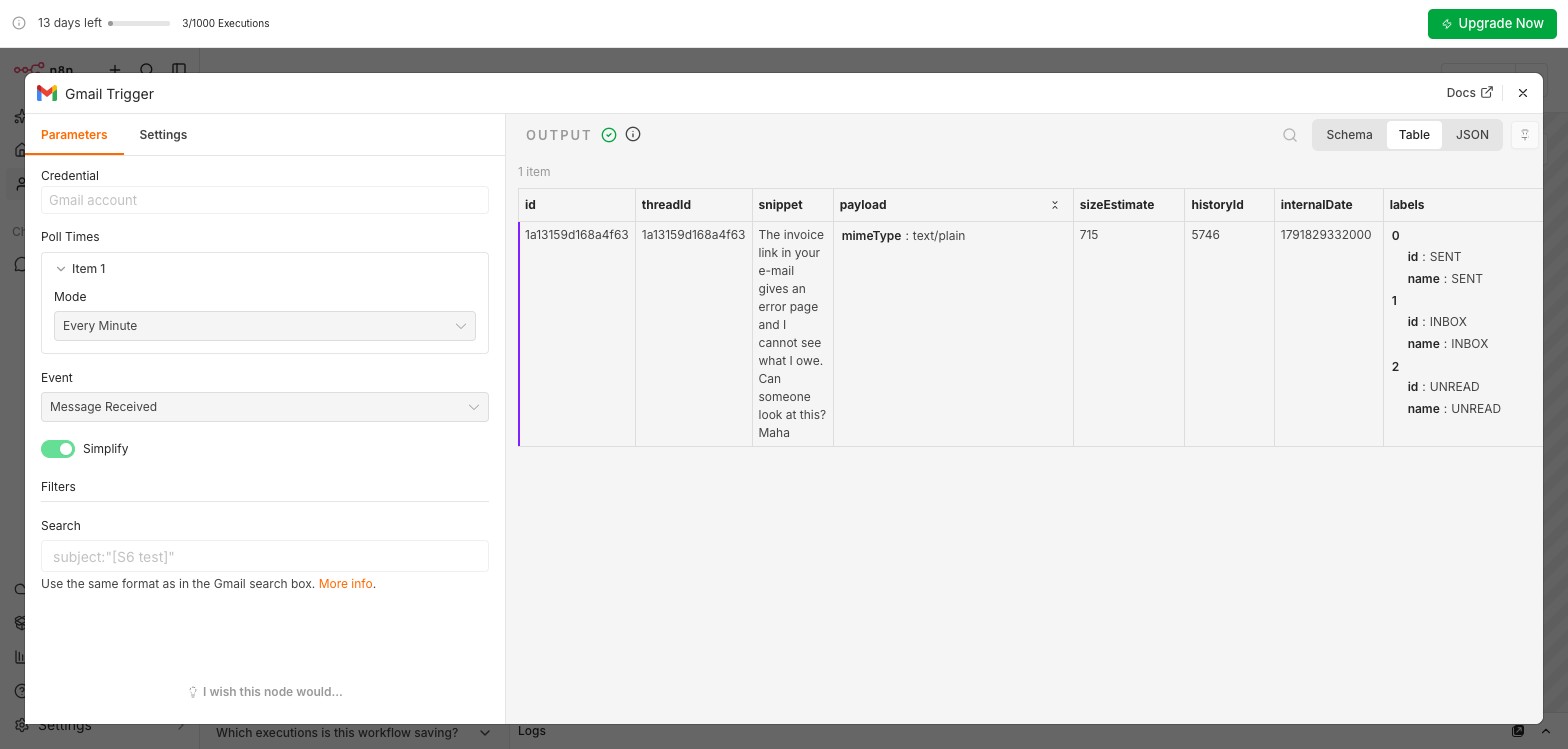
A new workflow M6 Inbox triage. Add first step: Gmail, On message received (Gmail Trigger). Your Gmail credential, Poll Times Every Minute, Event Message Received, Simplify: OFF, Filters, Search: subject:"[S6 test]". Send yourself one e-mail whose subject starts with [S6 test], then Fetch Test Event. The output must show subject and text.
Add Basic LLM Chain (search "LLM"), Source for Prompt: Define below. Paste the prompt from Section 3 without the two placeholders, then drag subject to the end of the Email subject: line and text to the end of the Email body: line. Under the chain, Model +, Google Gemini Chat Model: Credential Gateway credits, model models/gemini-2.5-flash picked from the list, Options, Sampling Temperature 0. Execute step: the output is one word.
Edit Fields (Set), Manual Mapping: a String field label, value (as an Expression) {{ $json.text.trim().toLowerCase() }}. Execute step: one lower-case word.
Switch, Mode Rules. Three rules on {{ $json.label }}, String, is equal to: billing, technical, sales. Turn on Rename Output and name each like its label. Options, Fallback Output: Extra Output, renamed unsure.
On billing, technical and sales: Gmail, Add label to message. Message ID (Expression): {{ $('Gmail Trigger').item.json.id }} (use your trigger node's name). Label: pick your label from the list. Settings: Retry On Fail on.
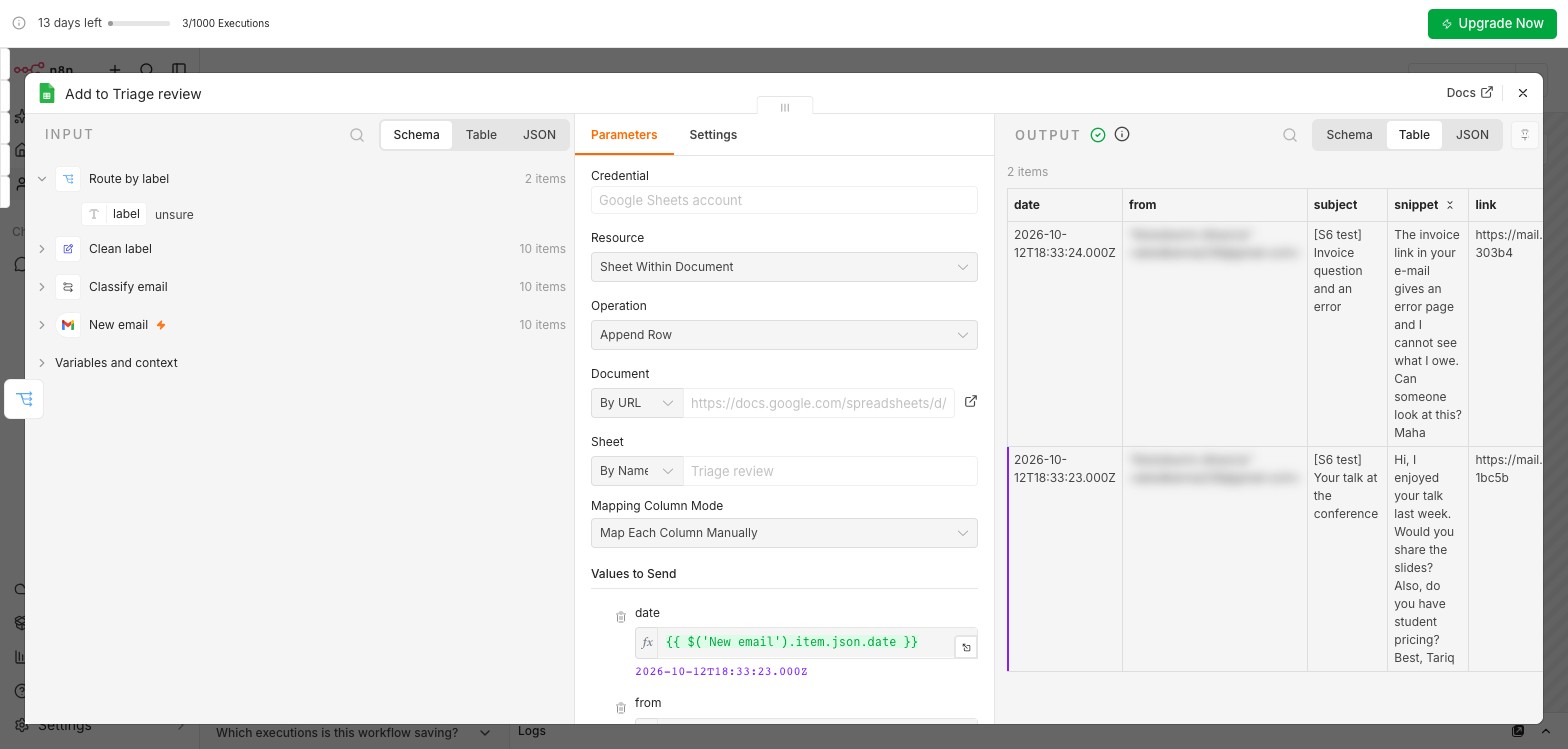
On unsure: Google Sheets, Append Row, your sheet, tab Triage review, Map Each Column Manually, dragging from the Gmail Trigger in the input panel:
| Column | Value |
|---|---|
| date | date |
| from | from, text |
| subject | subject |
| snippet | text |
| link | https://mail.google.com/mail/u/0/#all/ followed by id |
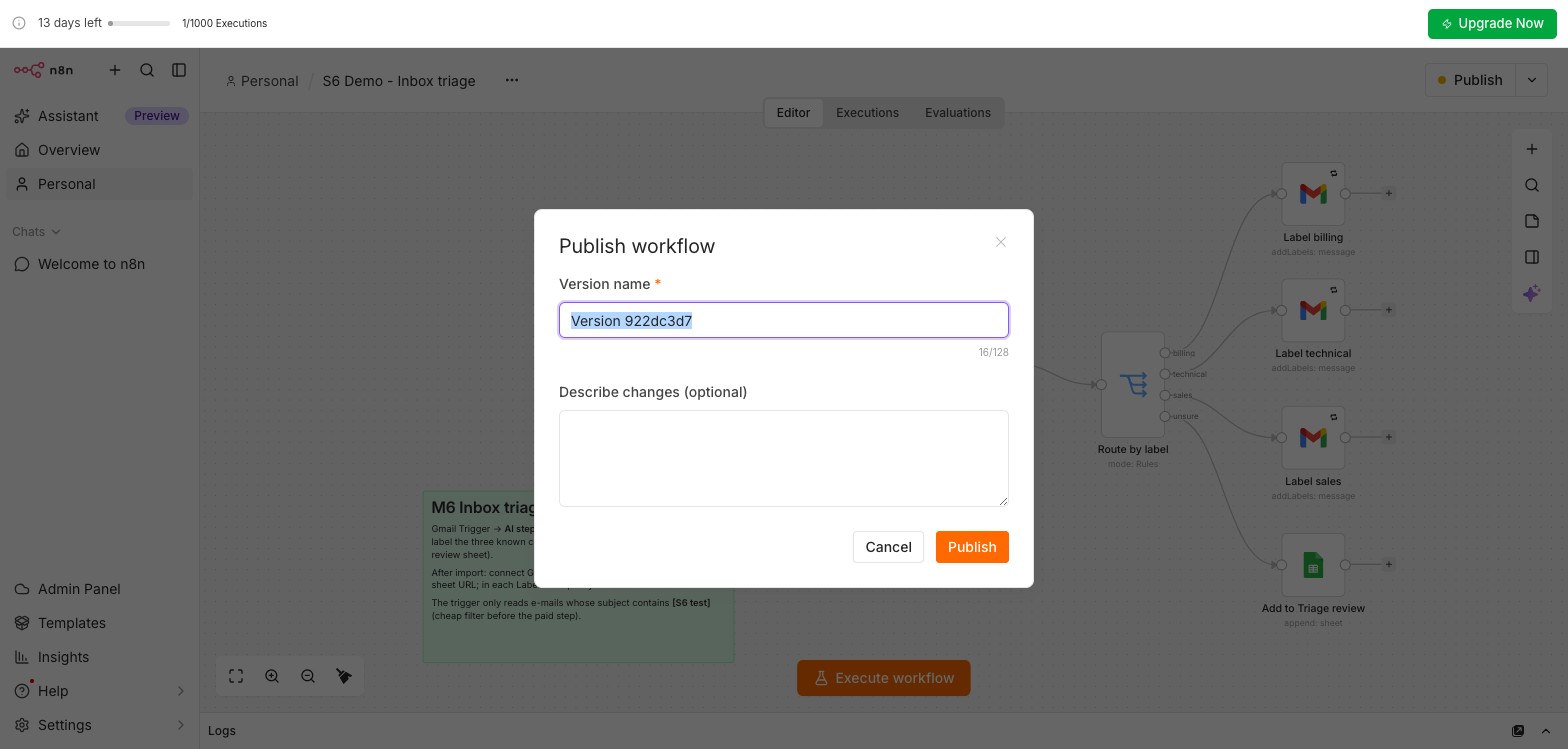
Publish the triage (top right) with the version name v1. Then open the helper and Execute workflow: ten e-mails arrive. Within two minutes open Executions in the triage: one run with 10 items, expected 8 labelled and 2 rows in Triage review. An e-mail in the wrong place? Tighten the definitions; add the v2 rule from Section 8, publish again as v2, run the helper again and compare.
In Executions, open the run and click the Google Gemini Chat Model node: tokenUsage shows prompt and completion tokens per e-mail (ours: 183 in, 1 out, about 6 cents per 1,000 e-mails). Note it, and the Gateway credits balance, for your Module 12 tracker. Using your own key? Set a monthly budget alert in AI Studio (Spend).
With Simplify on (the default), the Gmail Trigger outputs Subject (capital S) and snippet, but no text. The prompt's {{ $json.subject }} and {{ $json.text }} arrive empty and the model guesses, often unsure for everything. Fix: turn Simplify off, Fetch Test Event again, and re-drag the fields.
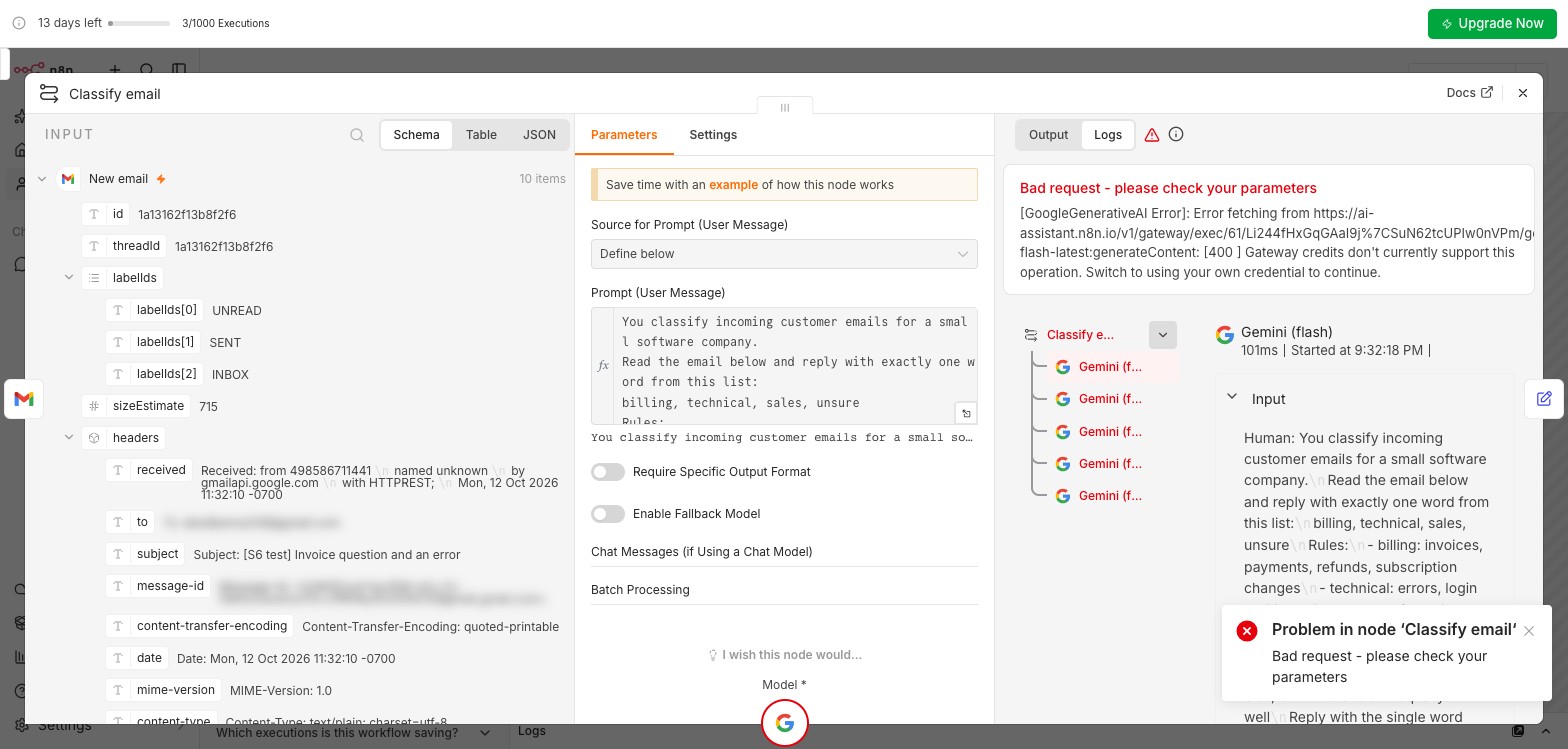
subject, no text.We typed models/gemini-flash-latest by hand. The run failed: "Gateway credits don't currently support this operation. Switch to using your own credential to continue." Gateway credits serve only the models in the node's list. The real fix is simpler than the message suggests: pick the model from the list.
Execute workflow on a polling trigger fetches only the latest matching e-mail. A published trigger only reads e-mails that arrive after publishing. So: build and test with one e-mail, Publish, then send the ten. That is why the helper waits until step 7.
A published M6 Inbox triage with one execution of ten items (8 labelled, 2 in Triage review), a screenshot of the Triage review sheet with the two ambiguous e-mails, one line with your tokens per e-mail and your cost estimate per 1,000 e-mails, and the exported JSON. Saved as M6-inbox-triage. Handout: Day3_S6_Lab_Handout.pdf. The helper: Day3_S6_Send_Test_Emails.json. The solution, to compare after you have built your own: Day3_S6_Inbox_Triage_Solution.json (after import: connect Gmail and Sheets, choose Gateway credits, paste your sheet URL and pick each label from the list again).
The ten test e-mails are your regression test: keep them, and run them again after every prompt change. Module 12 turns this into a tracker.
Menu, Export JSON, for every workflow you built today. If you will not use the triage until the next session, unpublish it: a polling trigger keeps checking Gmail every minute.
Pick one answer per question, then check your score. These mirror the style of the final exam.
Answer in your own words first, then open the model answer.
Any concrete answer with a closed list of labels or a fixed set of fields. A draft step must end in a review, not a send.
Allow an explicit unsure label; ask for a 0 to 100 confidence and route below a threshold such as 70; or run two prompts or models and route disagreements to a person.
No. It means the model never expresses doubt, so wrong labels are going straight into branches. Aim for 5 to 15 percent in review.
Next, Module 7: connecting tools with MCP, so an AI step can look things up instead of only reading the e-mail.
All n8n screens are real, from the course n8n Cloud trial workspace (n8n 2.42.7, 12 October 2026); e-mail addresses are blurred. The AI step used Google Gemini 2.5 Flash through the trial's Gateway credits, temperature 0. The ten test e-mails, their senders and the software company are fictional. Further reading: n8n for intelligent workflows · A Visual Guide to LLM Agents.